














When you trade from a Windows RDP server, two things matter: how fast the server reaches the exchange, and how smooth your remote screen feels. They are separate problems. This guide covers both, with settings you can apply in a few minutes.
Part 1: pick the right location
Distance causes most latency. Choose the datacenter closest to your broker or exchange, not closest to you. Your screen will lag a little more if the server is far from you, but your orders will be fast, and that is what counts for a trading terminal. See VPS for trading bots and low latency and how to choose a location.
Measure instead of guessing. From the server, test the route to your broker's address:
ping broker.example.com
tracert broker.example.com
Part 2: make the remote screen smooth
- Reduce colour depth and effects in your RDP client's Experience tab. Turn off wallpaper, menu animation and font smoothing if the connection is slow.
- Pick the right connection speed setting rather than leaving auto on a bad link.
- Match the resolution to your screen so nothing has to be scaled.
- Use a wired connection or a strong Wi-Fi signal on your side.
Part 3: keep the server fast
- Set the power plan to High performance.
- Close unneeded apps and startup items in Task Manager.
- Disable automatic restarts for updates during market hours, and schedule updates for a quiet window.
- Make sure the terminal gets enough RAM. Many platforms want 4 GB or more.
Set the power plan from an administrator prompt:
powercfg /setactive SCHEME_MIN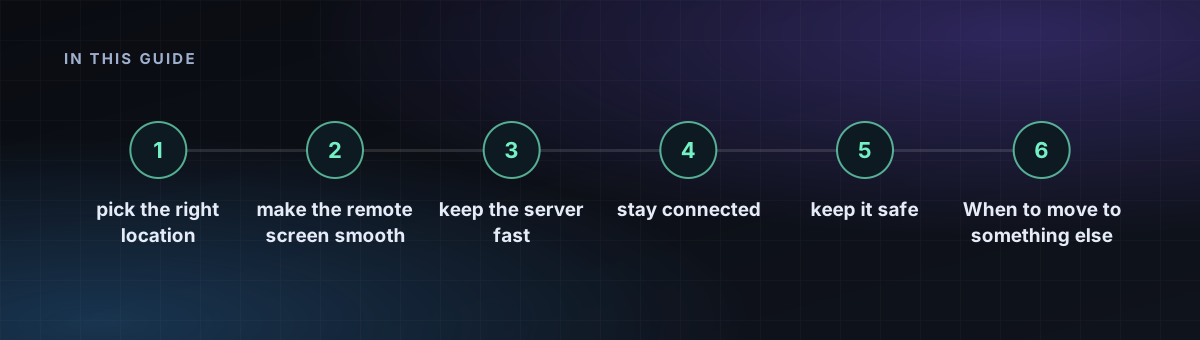
Part 4: stay connected
- Disable the idle disconnect limit so your session survives, or use "disconnect, not log off" so the terminal keeps running after you close the window.
- Never click the sign-out button when you leave. Close the RDP window instead, which leaves programs running.
- Run a trading terminal as a service-like process where the platform allows it.
Part 5: keep it safe
A trading server holds sensitive access. Use a strong password, enable Network Level Authentication and limit who can connect. Follow secure your Windows RDP server.
When to move to something else
If you only run automated strategies without needing a desktop, a Linux VPS is lighter and cheaper. See Windows RDP vs Linux VPS.