














Passwords for SSH get guessed. Keys do not. Switching your VPS to key-based login is the biggest single security upgrade you can make, and it takes about five minutes.
How SSH keys work
You create a pair of files. The private key stays on your computer and is never shared. The public key goes on the server. When you connect, the server challenges your computer to prove it holds the matching private key, without the key ever crossing the network.
1. Create a key pair
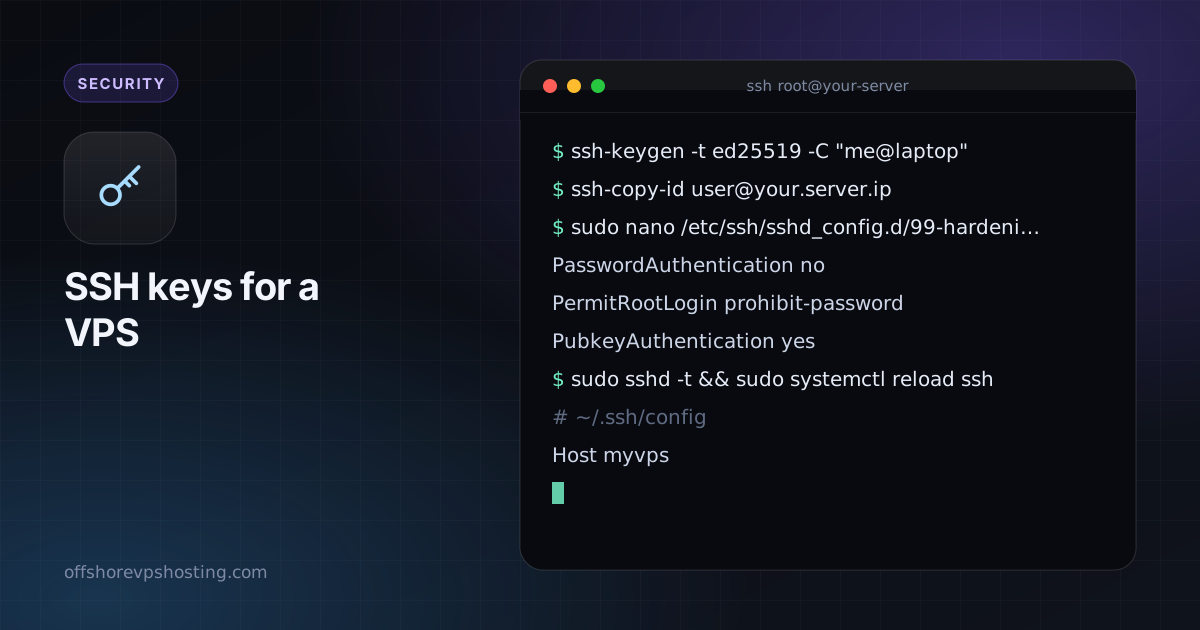
ssh-keygen -t ed25519 -C "me@laptop"Ed25519 keys are short, fast and modern. Choose a passphrase when asked, so that a stolen laptop does not mean a stolen server. On Windows 10 and 11 the same command works in PowerShell.
2. Copy the public key to the server
ssh-copy-id user@your.server.ipWithout ssh-copy-id, append the contents of ~/.ssh/id_ed25519.pub to ~/.ssh/authorized_keys on the server, then run chmod 700 ~/.ssh && chmod 600 ~/.ssh/authorized_keys.
3. Test before turning passwords off
Open a second terminal and log in with the key. Keep your first session open until this works, so that a mistake cannot lock you out.
4. Disable password login
sudo nano /etc/ssh/sshd_config.d/99-hardening.confPasswordAuthentication no
PermitRootLogin prohibit-password
PubkeyAuthentication yessudo sshd -t && sudo systemctl reload sshThe sshd -t check catches typos before they can break your access. On some systems the service is called sshd rather than ssh.
5. A tidy client config
# ~/.ssh/config
Host myvps
    HostName your.server.ip
    User deploy
    IdentityFile ~/.ssh/id_ed25519
Now ssh myvps is all you type.
Good practice
- Use a separate key per device, so that you can revoke one without touching the others.
- Use
ssh-agentso that you enter the passphrase once per session. - Remove keys from
authorized_keyswhen a device is lost or an employee leaves. - Add fail2ban to cut log noise, as in our 15-minute hardening checklist.