














A Windows RDP server is a powerful tool and an attractive target. Bots scan the internet for open remote desktop ports around the clock. These steps take about ten minutes and remove most of the risk.
1. Change the Administrator account setup
- Set a long, unique password (16 characters or more).
- Create a normal named user for daily work and rename or disable the built-in Administrator account where you can.
- Use a password manager. Never reuse a password from another site.
2. Turn on Network Level Authentication
Open System Properties, Remote and make sure "Allow connections only from computers running Remote Desktop with Network Level Authentication" is ticked. NLA makes the client authenticate before a full session is created, which blocks a whole class of attacks.
3. Limit who can connect
The strongest single step is a firewall rule that allows port 3389 only from your own IP address.
New-NetFirewallRule -DisplayName "RDP from my IP" -Direction Inbound `
  -Protocol TCP -LocalPort 3389 -RemoteAddress 203.0.113.10 -Action Allow
Replace the example address with yours, and disable the default broad rule for "Remote Desktop - User Mode (TCP-In)". If your IP changes often, use a VPN with a fixed address and allow only that.
4. Stop password guessing
Set an account lockout policy: Local Security Policy, Account Policies, Account Lockout Policy. Locking an account for 15 minutes after 5 failed attempts makes brute-force attacks impractical.
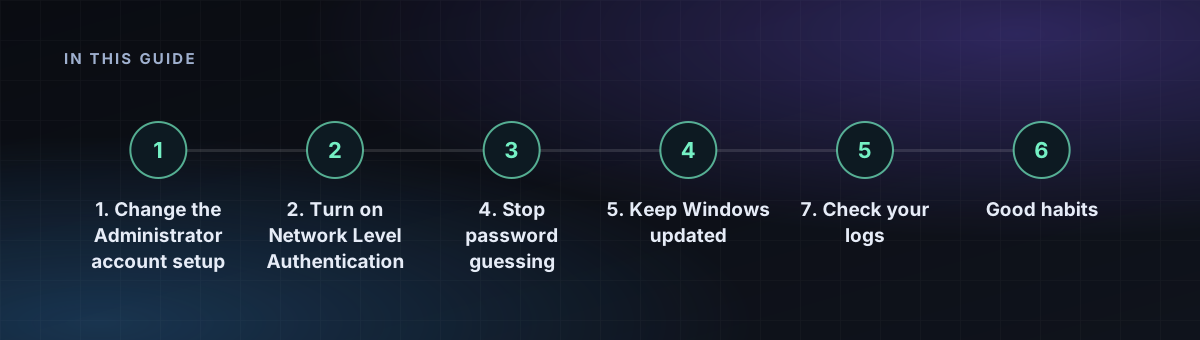
5. Keep Windows updated
Install updates promptly, especially for Remote Desktop Services. Several of the worst RDP flaws were fixed in monthly updates long before attackers used them widely.
6. Optional: change the port
Moving RDP off 3389 cuts log noise from casual bots, but does not stop a determined scanner. Treat it as a minor extra, never as a replacement for the steps above. If you change it, remember to open the new port in the firewall.
7. Check your logs
Open Event Viewer, Windows Logs, Security, and look for event ID 4625 (failed logon). Hundreds of failures from one address mean someone is guessing. Block that address and review step 3.
Good habits
- Do not browse the web or open email attachments on a server you rely on.
- Keep Defender enabled and updated.
- Disconnect (not just close the window) when you are finished, and sign out of unused sessions.
- Back up important files off the server.