














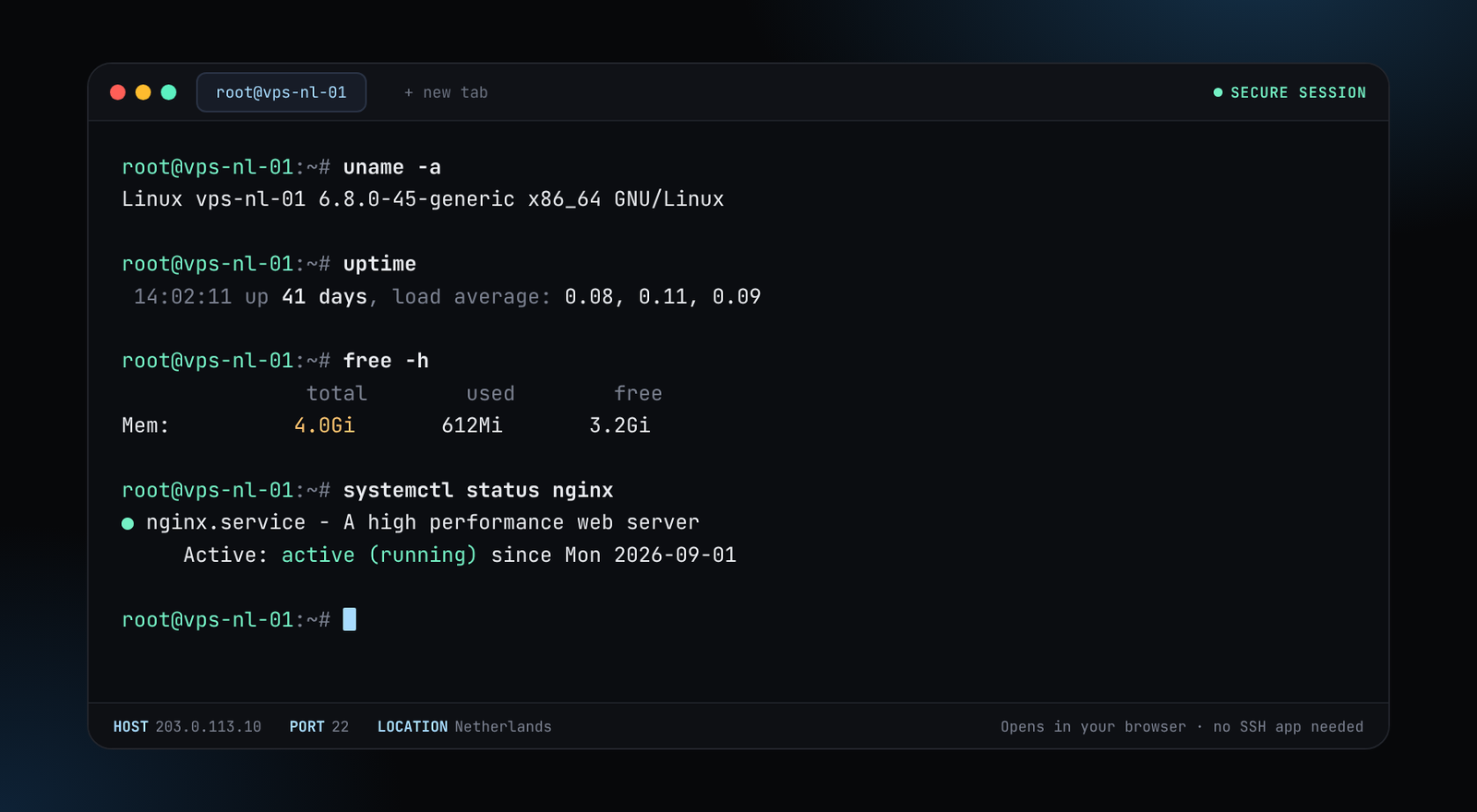
Shared hosting is easy, but a VPS gives you speed, root access and no noisy neighbours. This guide takes a fresh Ubuntu 24.04 or 22.04 server to a live HTTPS website using Nginx, in about twenty minutes. Every command can be copied as is.
What you need
- A VPS with at least 1 vCPU and 1 GB of RAM (our basic plans are enough for most small sites).
- A domain name pointed at the server's IP address (see our guide on pointing a domain to a VPS).
- SSH access as a sudo user. If the server is brand new, do the basic hardening first.
1. Install Nginx
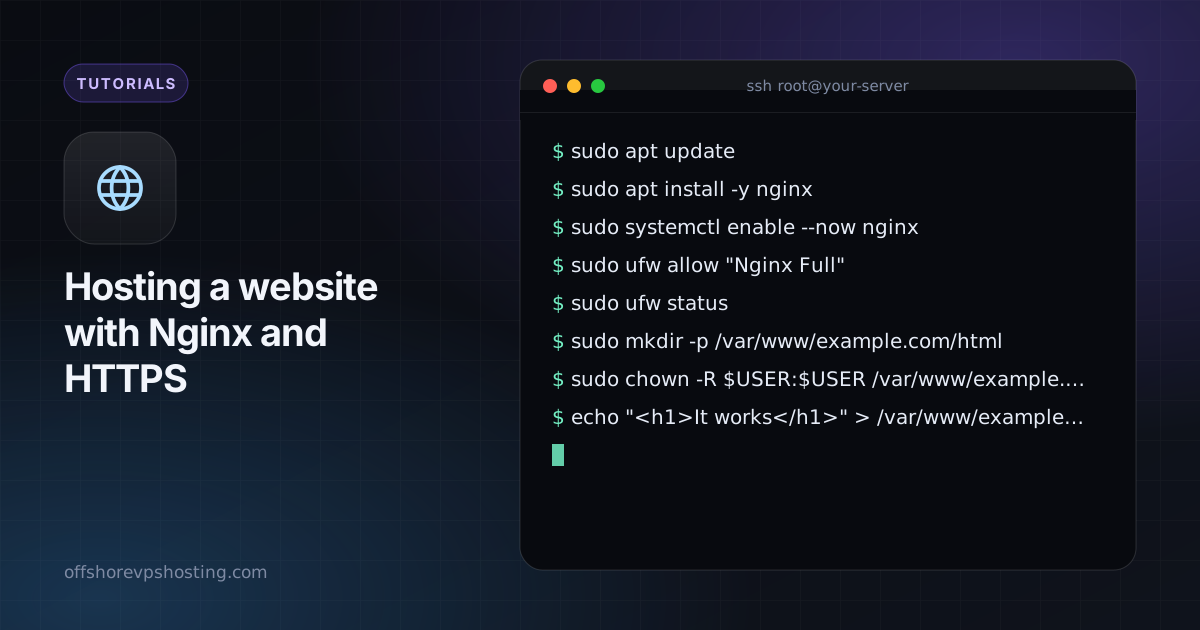
sudo apt update
sudo apt install -y nginx
sudo systemctl enable --now nginx
Open your server's IP address in a browser. You should see the default Nginx welcome page. If you do not, check that your firewall allows ports 80 and 443:
sudo ufw allow "Nginx Full"
sudo ufw status
2. Create the site folder
sudo mkdir -p /var/www/example.com/html
sudo chown -R $USER:$USER /var/www/example.com
echo "<h1>It works</h1>" > /var/www/example.com/html/index.html
Replace example.com with your own domain throughout.
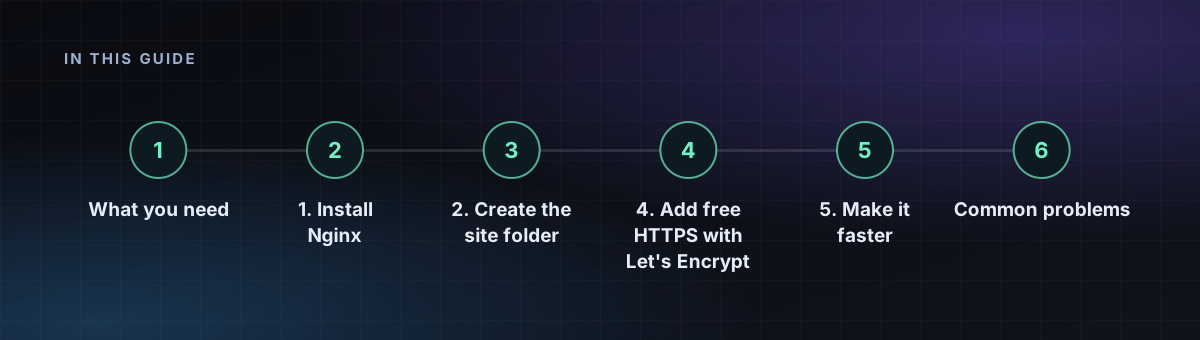
3. Add a server block
sudo nano /etc/nginx/sites-available/example.comserver {
listen 80;
listen [::]:80;
server_name example.com www.example.com;
root /var/www/example.com/html;
index index.html;
location / {
try_files $uri $uri/ =404;
}
}Enable it, test the configuration and reload:
sudo ln -s /etc/nginx/sites-available/example.com /etc/nginx/sites-enabled/
sudo nginx -t
sudo systemctl reload nginx
4. Add free HTTPS with Let's Encrypt
sudo apt install -y certbot python3-certbot-nginx
sudo certbot --nginx -d example.com -d www.example.com
Certbot edits your server block, redirects HTTP to HTTPS and installs a timer that renews the certificate automatically. Check the timer with systemctl list-timers | grep certbot.
5. Make it faster
Turn on compression and browser caching for static files. Add this inside the server block:
gzip on;
gzip_types text/css application/javascript application/json image/svg+xml;

location ~* \.(css|js|png|jpg|jpeg|webp|svg|woff2)$ {
    expires 30d;
    add_header Cache-Control "public";
}
Reload Nginx afterwards. For dynamic sites such as WordPress, install PHP-FPM and pass .php requests to it, or put a cache plugin in front.
Common problems
- 403 Forbidden: Nginx cannot read the folder. Check ownership and that every parent directory is executable (
chmod o+x). - Certbot fails: the domain is not pointing at the server yet, or port 80 is blocked.
- Default page still shows: remove
/etc/nginx/sites-enabled/defaultand reload.