














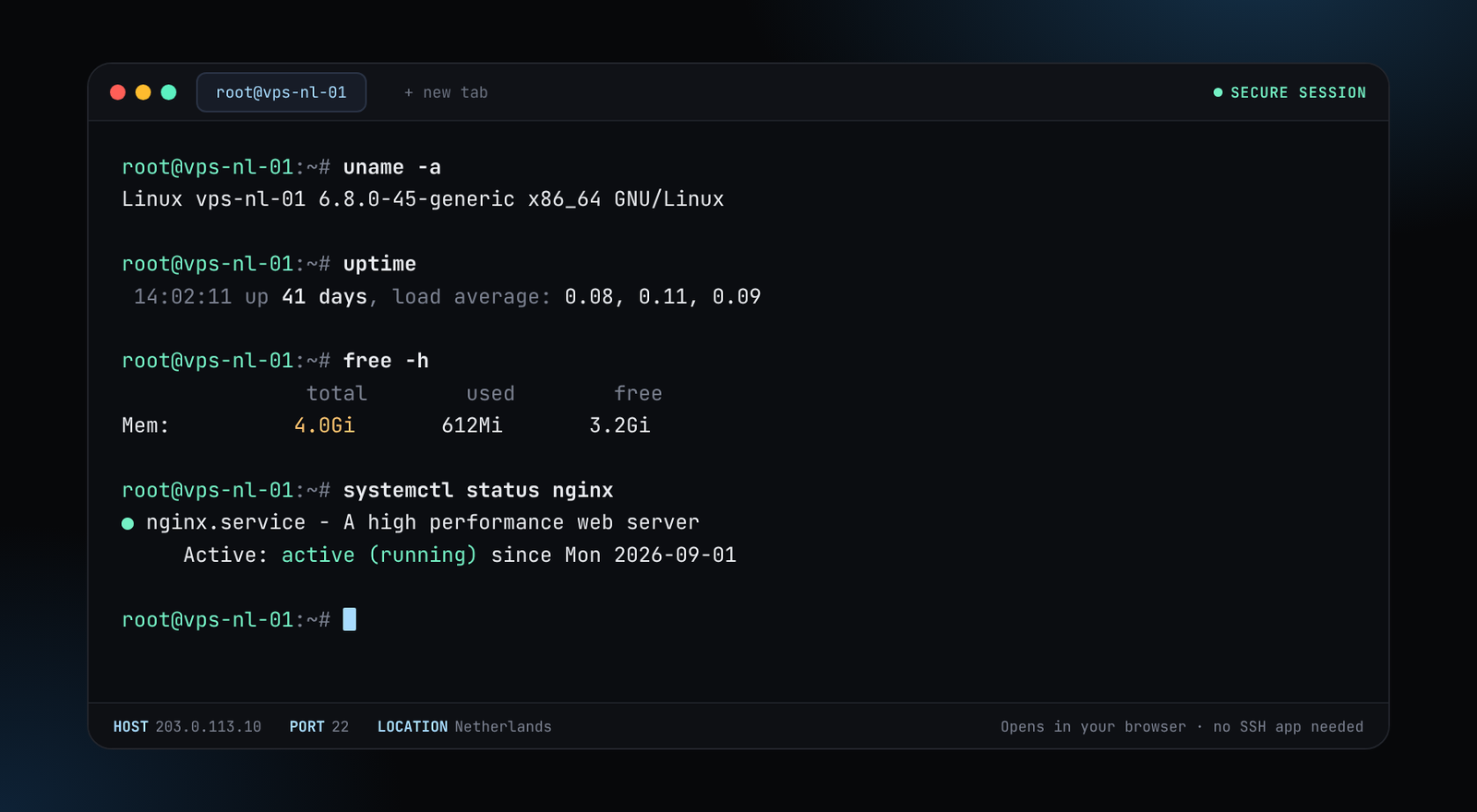
Modern web hosting plans are not just for WordPress. Our hosting plans support WordPress, Next.js, Node.js and Laravel/PHP apps, with Git deployment from GitHub or GitLab. This post explains how each type of app is deployed so you can choose the right path.

Pick the right type of hosting for the app
- WordPress and PHP apps (Laravel). Run well on web hosting. You get PHP, MySQL, cron jobs and a control panel.
- Node.js and Next.js. Run as a long-lived Node process. Web hosting handles the process management for you.
- Heavy or custom stacks. Need root access, background workers or special software? Move to a VPS.
Plans and what each includes are on the web hosting page.
WordPress: one-click install
Choose WordPress as the platform when you order, and it is installed for you. After it deploys, log in to the control panel, open WordPress and finish the site setup. Add a plugin for caching if you want extra speed.
Laravel and PHP apps
- Connect your Git repository from the control panel, or upload the files.
- Set the web root to the
publicfolder. - Create a MySQL database and put its details in
.env. - Run the usual commands (over SSH on plans that include it):
composer install --no-dev --optimize-autoloader
php artisan key:generate
php artisan migrate --force
php artisan config:cache
Add a cron entry for scheduled tasks:
* * * * * cd /path/to/app && php artisan schedule:run >> /dev/null 2>&1
Next.js and Node.js
- Push your project to GitHub or GitLab and connect it in the control panel.
- Set the build command and start command, for Next.js usually:
npm ci
npm run build
npm start- Set environment variables for secrets in the panel instead of committing them.
- Redeploy by pushing to your branch.
Check that your app listens on the port the panel gives it, and reads it from process.env.PORT.
Domains, SSL and email
Every plan includes free SSL, and the first-year domain is free. Point the domain at the hosting account, wait for DNS to update and the certificate is issued for you. See DNS records explained. Free email with unlimited mailboxes is included.
When a VPS is the better fit
Choose a VPS when you need to run background services, a database you tune yourself, Docker, or anything that web hosting does not allow. The Nginx and HTTPS guide covers that path.