














A new VPS with a public IP address starts getting automated login attempts within minutes. None of it is personal; bots simply scan every address. A few basic steps stop almost all of it. This checklist assumes a fresh Ubuntu 24.04 or Debian 12/13 server and takes about fifteen minutes.
1. Update everything first
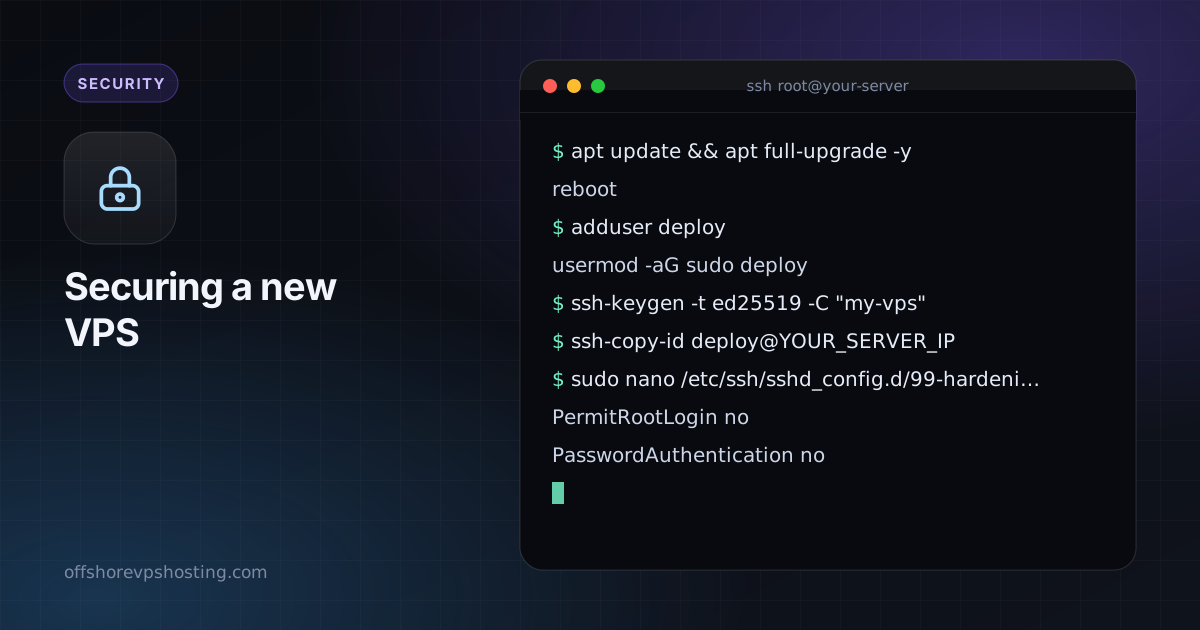
apt update && apt full-upgrade -y
reboot
Log back in after the reboot. Always start from a fully patched system.
2. Create a non-root user
Working as root all the time makes every typo dangerous. Create a normal user with sudo rights:
adduser deploy
usermod -aG sudo deploy
3. Set up SSH keys
On your own computer, create a key pair if you do not have one and copy the public half to the server:
ssh-keygen -t ed25519 -C "my-vps"
ssh-copy-id deploy@YOUR_SERVER_IP
Open a second terminal and confirm you can log in as deploy with the key before moving on. Do not close your original session until you have.
4. Turn off password and root login
Edit the SSH daemon configuration:
sudo nano /etc/ssh/sshd_config.d/99-hardening.confPut these lines in the file:
PermitRootLogin no
PasswordAuthentication no
KbdInteractiveAuthentication no
PubkeyAuthentication yes
MaxAuthTries 3
Check the syntax and reload:
sudo sshd -t && sudo systemctl reload ssh5. Enable a firewall
UFW is the simplest option. Allow SSH first, then switch the firewall on:
sudo ufw default deny incoming
sudo ufw default allow outgoing
sudo ufw allow OpenSSH
sudo ufw allow 80,443/tcp   # only if you run a web server
sudo ufw enable
sudo ufw status verbose
Only open ports for services you actually run. Everything else stays closed by default.
6. Add fail2ban
Fail2ban watches logs and temporarily bans addresses that keep failing to log in.
sudo apt install -y fail2ban
sudo systemctl enable --now fail2ban
sudo fail2ban-client status sshd
The defaults are sensible for SSH. Because you already disabled passwords, this mostly cuts log noise and wasted CPU.
7. Turn on automatic security updates
sudo apt install -y unattended-upgrades
sudo dpkg-reconfigure -plow unattended-upgrades
This installs security patches automatically. Reboot occasionally for kernel updates, or let the tool do it at a quiet hour.
8. Check what is listening
sudo ss -tulpnAnything listening on 0.0.0.0 that you did not expect is worth investigating. Services meant for local use only (databases, caches, admin panels) should listen on 127.0.0.1.
9. Basic monitoring and backups
- Watch logs with
journalctl -u ssh --since todaynow and then. - Check resources with
htopanddf -hso a full disk or runaway process does not surprise you. - Take backups. Snapshot the server before big changes and keep an off-server copy of anything you cannot recreate.
What to do next
You now have a server that is far harder to break into than the default. From here, keep software updated, run each service as its own unprivileged user, and only expose what you need. If you want a private tunnel to the server, our guide to setting up WireGuard is a good next step.
Frequently asked questions
What should I do first on a new VPS?
Update packages, create a non-root user, switch to SSH keys, disable password login and enable a firewall.
Should I change the SSH port?
It reduces log noise but is not real security. Keys and a firewall matter far more.