














An Expert Advisor (EA) only trades while the platform is running. A laptop sleeps, loses Wi-Fi and restarts for updates. A Windows server in a data centre keeps MetaTrader online all day and sits close to your broker's servers. This guide sets one up for MT4 or MT5.
Choose the server
- Location: near your broker's trade server reduces latency. Ask the broker where it is hosted. See optimise RDP for trading.
- RAM: 2 GB per MetaTrader instance is a safe starting point, plus Windows itself. 4 GB suits one or two terminals.
- CPU: two cores handle several charts and EAs. Heavy backtests need more.
- Licence: make sure the plan matches the number of users. See Windows RDP licensing.
Step 1: connect and secure it first
Log in by RDP from your device (see the guides for Mac and Linux), change the Administrator password at once and follow securing a Windows RDP server. Trading accounts attract attackers.
Step 2: install the platform
Download the installer from your broker's own website, not a third-party site. Run it, log in with your trading account and check that the connection indicator at the bottom right shows a live feed.
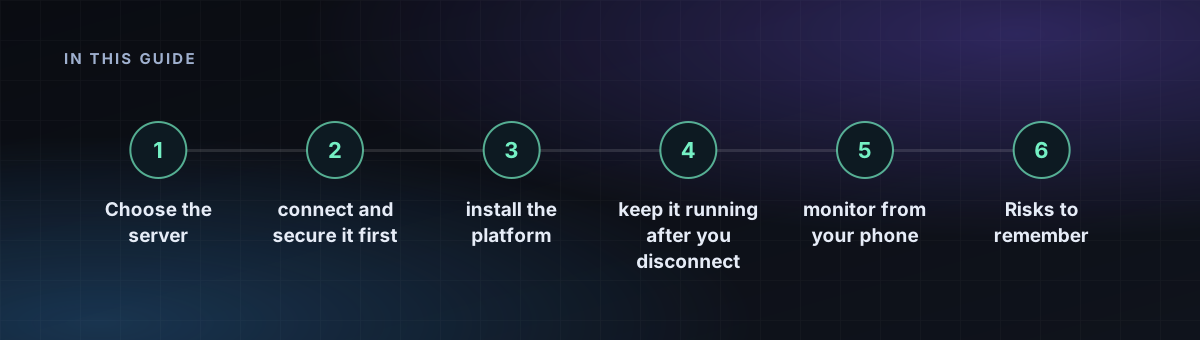
Step 3: install and test the EA
- Open File, Open Data Folder, then MQL4 or MQL5, then Experts. Copy your EA file there.
- Restart the terminal, or refresh the Navigator.
- Drag the EA onto a chart and enable Algo Trading in the toolbar.
- Test on a demo account first. Do not run an untested EA with real money.
Step 4: keep it running after you disconnect
Close the RDP window with the X button, not with Sign out. Closing the window leaves your session running. Signing out ends your programs. Then:
- Set the platform to start with Windows: put a shortcut in the Startup folder (
shell:startup). - Enable automatic logon only if you accept the security trade-off, otherwise log in yourself after a reboot.
- Switch the power plan to High performance and turn off sleep.
- Pause or schedule Windows updates so a restart does not catch you mid-trade.
Step 5: monitor from your phone
Install the MetaTrader mobile app with the same account to watch positions, and use the platform's notifications for disconnects. Check the server weekly: disk space, memory and the terminal's log.
Risks to remember
- Check your broker's terms on automated trading and on VPS use.
- A server does not make a strategy profitable. Trading leveraged products carries a high risk of loss.
- Back up your EA files and settings off the server.