














TRON is popular for USDT transfers, so many services need their own node instead of relying on a public API with rate limits. This guide sets up a java-tron FullNode on a Linux server and covers the settings that decide how much disk it uses.
What you need
- Disk. This is the main cost. A full-history node needs a very large NVMe drive. A "lite" fullnode starts from a snapshot and keeps much less data. Check the current figures in the java-tron documentation before you buy.
- RAM. 16 GB is a common minimum, with the JVM heap set well below the total.
- CPU. 4 or more cores.
- Java. java-tron supports specific Java versions. Use the version the release notes name.
See TRON node hosting for sized plans.
Step 1: prepare the server
Use Ubuntu LTS and follow how to secure a new VPS. Create a user and install the required JDK.
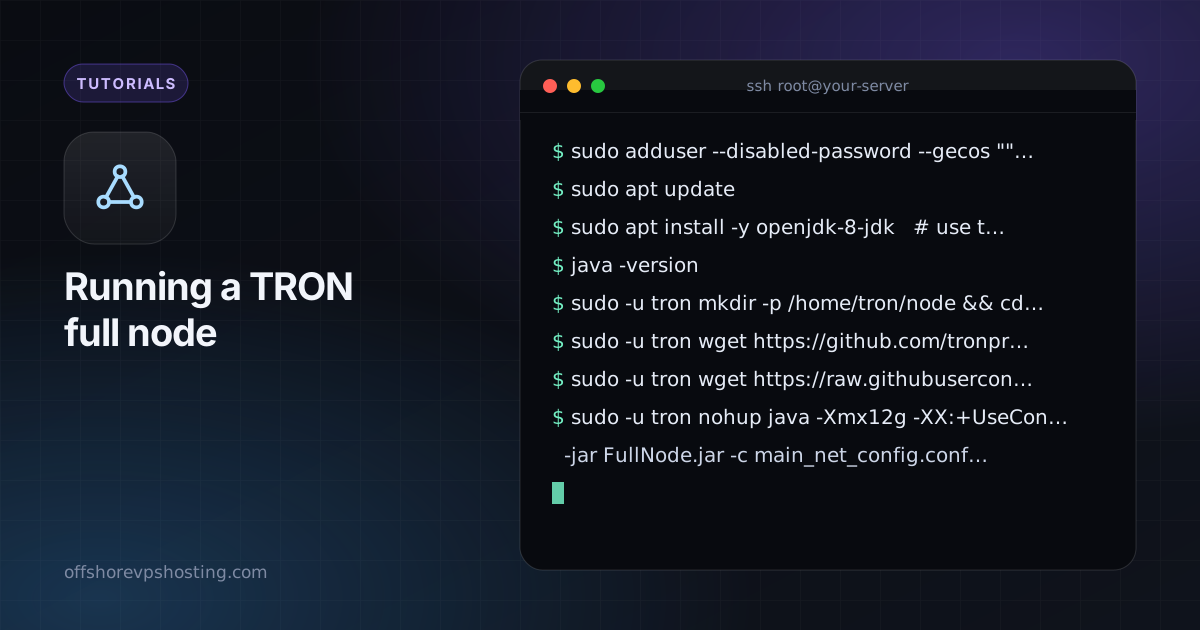
sudo adduser --disabled-password --gecos "" tron
sudo apt update
sudo apt install -y openjdk-8-jdk   # use the Java version in the java-tron release notes
java -version
Step 2: download java-tron
Get FullNode.jar and the matching main_net_config.conf from the official java-tron GitHub releases and verify the checksums.
sudo -u tron mkdir -p /home/tron/node && cd /home/tron/node
sudo -u tron wget https://github.com/tronprotocol/java-tron/releases/download/GreatVoyage-vVERSION/FullNode.jar
sudo -u tron wget https://raw.githubusercontent.com/tronprotocol/tron-deployment/master/main_net_config.conf
Step 3: choose your data mode
You can sync from the start, which takes a long time, or start from an official snapshot. Snapshots are listed in the TRON documentation. A lite snapshot gives you recent state only, which is enough for most payment and wallet use. Download and extract the snapshot into the output-directory before the first start.
Step 4: start the node
sudo -u tron nohup java -Xmx12g -XX:+UseConcMarkSweepGC \
  -jar FullNode.jar -c main_net_config.conf \
  > start.log 2>&1 &
Set -Xmx below your total RAM so the operating system keeps room for its cache. For a permanent setup, wrap the same command in a systemd unit with Restart=on-failure.
Step 5: check that it is syncing
tail -f /home/tron/node/logs/tron.log
curl -s http://127.0.0.1:8090/wallet/getnowblock | head -c 300
If the latest block number matches a public explorer, the node is in sync.
Firewall
Open the peer port (18888 TCP/UDP by default) and keep the HTTP and gRPC ports (8090, 8091, 50051) private. Put authentication in front if other machines need to call the API.