













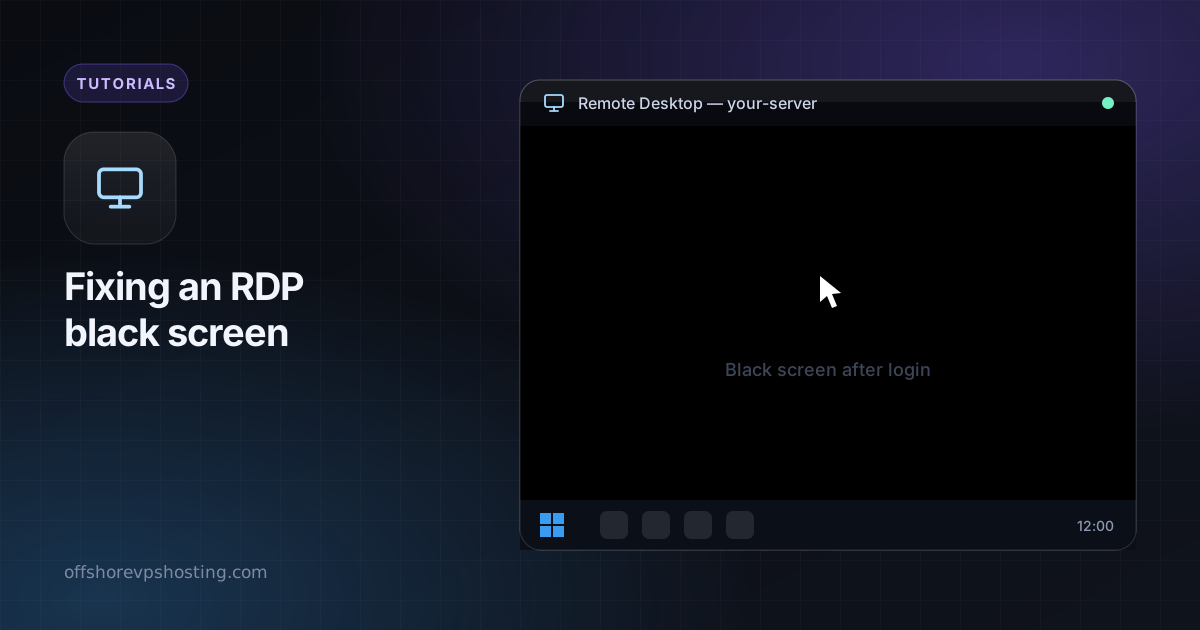
You connect, enter the password, and the Remote Desktop window turns black. The server is up and the connection worked, but the desktop never draws. It is one of the most common RDP problems and almost always fixable in a few minutes. Work through these steps in order.
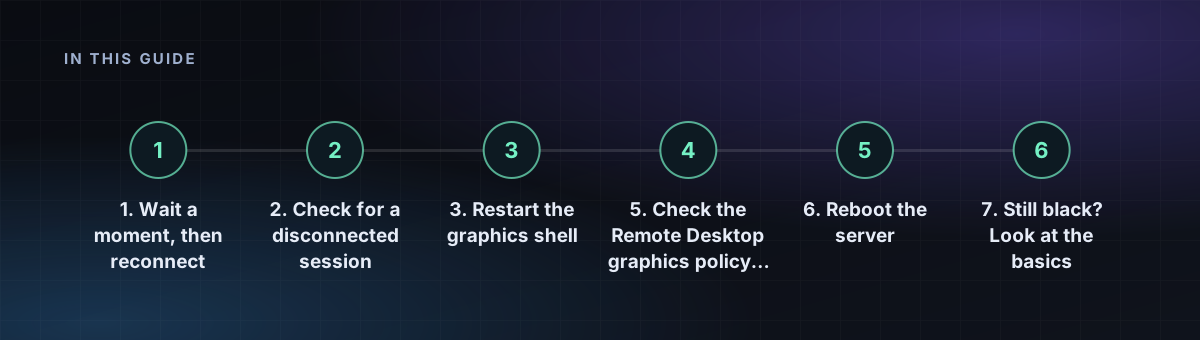
1. Wait a moment, then reconnect
Right after a reboot or a Windows update, the desktop can take a minute or two to finish loading. Close the window, wait a short while and connect again. A fresh login often clears a stuck session.
2. Check for a disconnected session
If a previous session is still open on the server, a new connection can attach to it in a broken state. If you can still reach the server another way (the web console in your dashboard), sign out of old sessions: open Task Manager, go to the Users tab, right-click the old session and choose Sign off.
3. Restart the graphics shell
Inside a session that shows only a black screen, press Ctrl+Alt+End (the remote equivalent of Ctrl+Alt+Del), open Task Manager, and choose File, Run new task. Enter explorer.exe and confirm. This restarts the desktop shell and usually brings the screen back.
4. Lower the display settings of your client
- Reduce the colour depth from 32-bit to 16-bit or 24-bit.
- Use a smaller resolution than your monitor's native one.
- Turn off options such as "Use all my monitors" and multi-monitor spanning to test.
- Disable hardware graphics acceleration in the client if it has that setting.
5. Check the Remote Desktop graphics policy on the server
Open gpedit.msc and go to Computer Configuration, Administrative Templates, Windows Components, Remote Desktop Services, Remote Desktop Session Host, Remote Session Environment. Review the setting Use hardware graphics adapters for all Remote Desktop Services sessions and try toggling it, then reconnect. Servers without a physical GPU often behave better with software rendering.
6. Reboot the server
If nothing else works, restart the server from your dashboard. A reboot clears most stuck graphics and session states. Make sure you have saved your work first.
7. Still black? Look at the basics
- Confirm the server is running and has free disk space. A full system drive can stop the desktop from loading.
- Try a different RDP client, such as the one built into Windows or Remmina on Linux.
- Check whether the issue appears on a different network. A restrictive firewall or VPN can degrade the connection.