














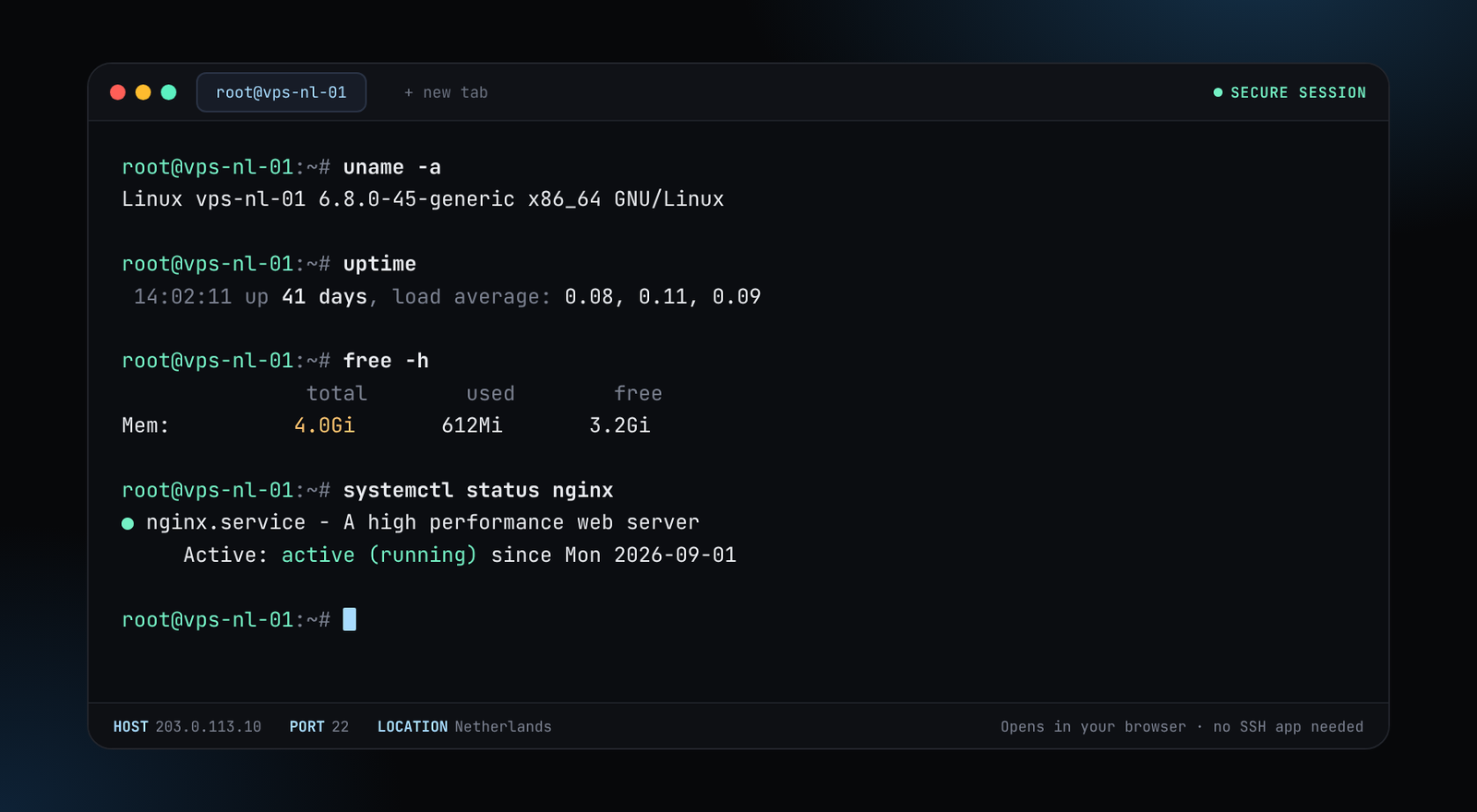
Nextcloud gives you file sync, calendars, contacts and document editing on a server you control, instead of handing your files to a large cloud provider. Here is how to run it on a VPS with Docker Compose.
Before you start
- A VPS with 2 vCPU and 4 GB of RAM is a comfortable start. Storage is the main constraint, so pick a disk size that fits your files.
- A domain pointing at the server, covered in our DNS guide.
- Docker installed, see install Docker on Ubuntu.
1. The Compose file
mkdir -p ~/nextcloud && cd ~/nextcloud
cat > compose.yaml <<'EOF'
services:
  db:
    image: mariadb:11
    restart: unless-stopped
    command: --transaction-isolation=READ-COMMITTED --log-bin=binlog --binlog-format=ROW
    environment:
      MYSQL_ROOT_PASSWORD: change-me-root
      MYSQL_PASSWORD: change-me-db
      MYSQL_DATABASE: nextcloud
      MYSQL_USER: nextcloud
    volumes:
      - db:/var/lib/mysql
  redis:
    image: redis:7-alpine
    restart: unless-stopped
  app:
    image: nextcloud:stable
    restart: unless-stopped
    depends_on: [db, redis]
    ports:
      - "127.0.0.1:8080:80"
    environment:
      MYSQL_HOST: db
      MYSQL_DATABASE: nextcloud
      MYSQL_USER: nextcloud
      MYSQL_PASSWORD: change-me-db
      REDIS_HOST: redis
    volumes:
      - nc:/var/www/html
volumes:
  db:
  nc:
EOF
docker compose up -d
Change all three passwords before you run it. Use long random strings.
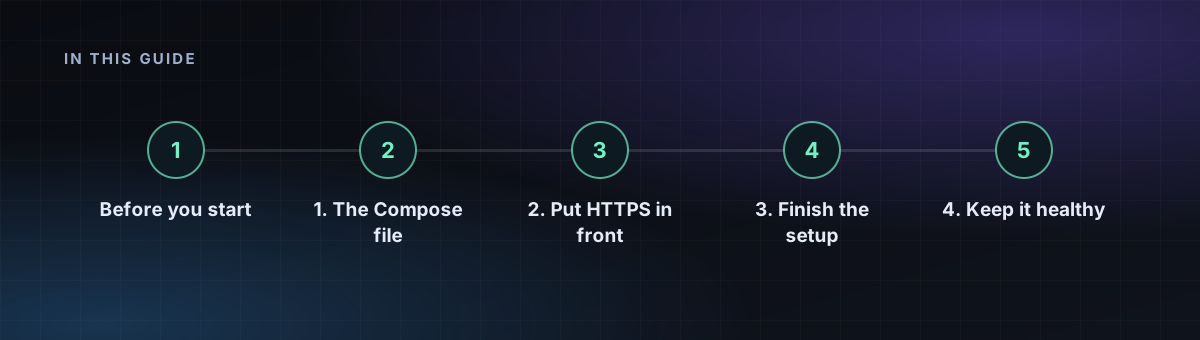
2. Put HTTPS in front
Add an Nginx server block that proxies to 127.0.0.1:8080, then run Certbot as in our Nginx guide. The proxy block needs these lines so that Nextcloud sees the right protocol and large uploads work:
client_max_body_size 2G;
location / {
    proxy_pass http://127.0.0.1:8080;
    proxy_set_header Host $host;
    proxy_set_header X-Forwarded-Proto $scheme;
    proxy_set_header X-Real-IP $remote_addr;
}
3. Finish the setup
Open your domain and create the admin account. Then add your domain to the trusted list and set the proxy details:
docker compose exec -u www-data app php occ config:system:set trusted_domains 1 --value=cloud.example.com
docker compose exec -u www-data app php occ config:system:set overwriteprotocol --value=https
4. Keep it healthy
- Updates:
docker compose pull && docker compose up -d, one major version at a time. - Background jobs: switch to Cron in the admin settings and add a host cron entry running
cron.phpevery five minutes. - Backups: save both volumes and a database dump. See how to back up a VPS.
- Two-factor login: enable the TOTP app for every account.