














Disk encryption protects data at rest. On a VPS the host controls the hypervisor, so it cannot stop a determined provider from reading memory. What it does well is protect against lost backups, recycled disks and stolen or seized storage. Know which of those you are defending against before you spend time on it.
Decide what you are protecting against
- Retired or copied disks: encryption helps a lot.
- Leaked snapshots: encryption helps if the key is not stored with the snapshot.
- A live attacker on the running system: encryption does not help, because the volume is unlocked.
- A malicious hypervisor: encryption does not help on a VPS. A dedicated server with full control of the hardware is the stronger option.
Option 1: an encrypted data volume
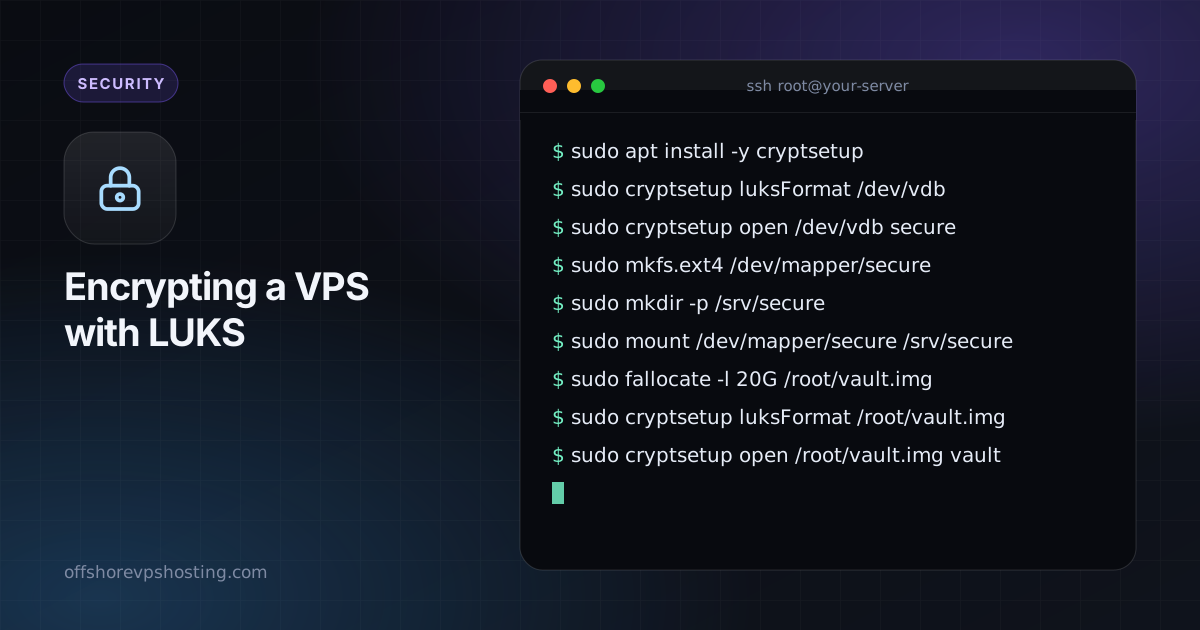
This is the safest place to start. Attach a second disk or create a loop file, and keep sensitive data there. The example uses an empty device named /dev/vdb. Double-check the device name, because formatting destroys its contents.
sudo apt install -y cryptsetup
sudo cryptsetup luksFormat /dev/vdb
sudo cryptsetup open /dev/vdb secure
sudo mkfs.ext4 /dev/mapper/secure
sudo mkdir -p /srv/secure
sudo mount /dev/mapper/secure /srv/secure
To close it again: sudo umount /srv/secure && sudo cryptsetup close secure.
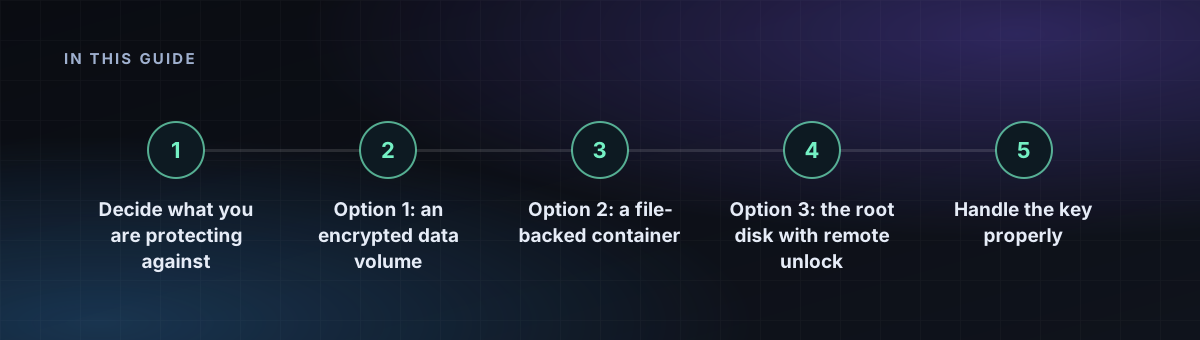
Option 2: a file-backed container
When you have no spare disk, use a file as the container.
sudo fallocate -l 20G /root/vault.img
sudo cryptsetup luksFormat /root/vault.img
sudo cryptsetup open /root/vault.img vault
sudo mkfs.ext4 /dev/mapper/vault
sudo mount /dev/mapper/vault /srv/vault
Option 3: the root disk with remote unlock
Encrypting the root disk needs a way to enter the passphrase at boot, before the network is up. The usual answer is a small SSH server (dropbear) inside the initramfs. This depends on your provider letting you install a custom image or reinstall with your own partitioning, so check that first. Many VPS panels do not allow it, and a mistake can leave the server unbootable, so keep a rescue option ready.
In outline: install with an encrypted root, add dropbear-initramfs, put your SSH public key in /etc/dropbear/initramfs/authorized_keys, regenerate the initramfs, then reboot and unlock over SSH with cryptroot-unlock.
Handle the key properly
- Use a long passphrase and keep it in a password manager, not on the server.
- Back up the LUKS header:
sudo cryptsetup luksHeaderBackup /dev/vdb --header-backup-file header.img. Store it offline. - Do not auto-unlock with a key file stored on the same disk. That defeats the point.
- Remember that unlocking at boot means a reboot needs you present.
Pair encryption with solid encrypted backups and the basics from 15-minute hardening.