














WireGuard is a modern VPN protocol that is fast, small and easy to configure. Running your own on a VPS gives you an encrypted tunnel to a server in the country of your choice, with no third-party VPN company in the middle. This guide uses Ubuntu 24.04 or Debian 12/13 and assumes you have already secured the server.
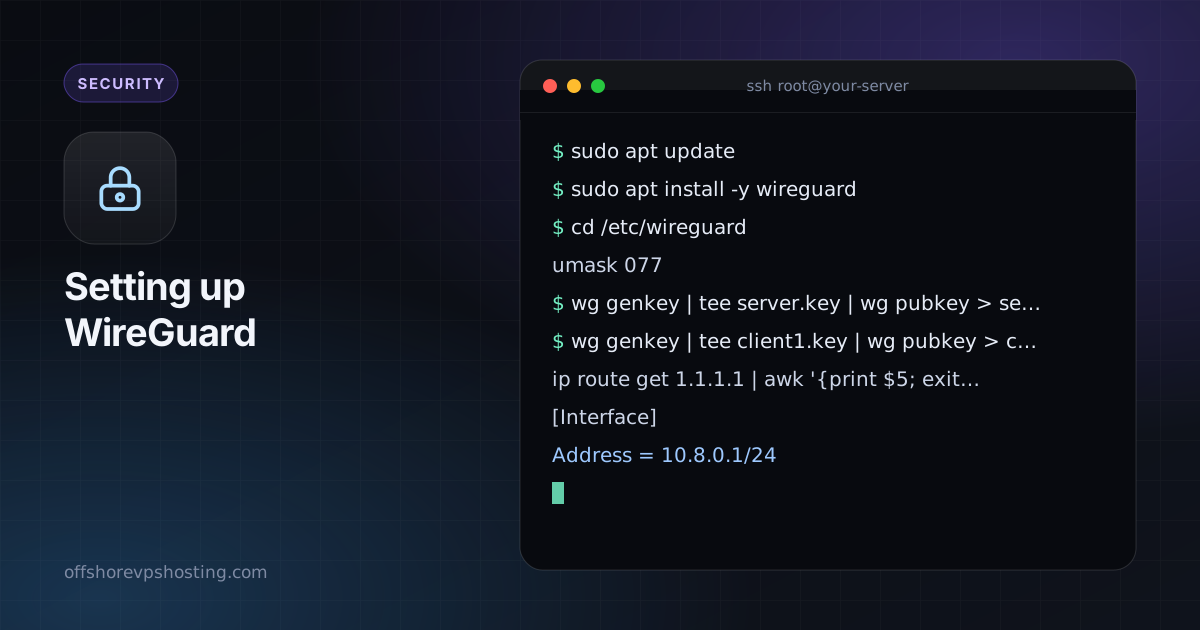
1. Install WireGuard
sudo apt update
sudo apt install -y wireguard
2. Generate the server keys
cd /etc/wireguard
umask 077
wg genkey | tee server.key | wg pubkey > server.pub
The umask 077 makes sure the key files are only readable by root. Keep server.key private.
3. Create the client keys
Generate a key pair for your laptop or phone on the server and copy the client config across afterwards:
wg genkey | tee client1.key | wg pubkey > client1.pub4. Write the server config
First find the name of your public network interface:
ip route get 1.1.1.1 | awk '{print $5; exit}'It is often eth0 or ens3. Create /etc/wireguard/wg0.conf and replace the values in capitals with your own:
[Interface]
Address = 10.8.0.1/24
ListenPort = 51820
PrivateKey = SERVER_PRIVATE_KEY
PostUp   = iptables -A FORWARD -i wg0 -j ACCEPT; iptables -t nat -A POSTROUTING -o ETH_IF -j MASQUERADE
PostDown = iptables -D FORWARD -i wg0 -j ACCEPT; iptables -t nat -D POSTROUTING -o ETH_IF -j MASQUERADE

[Peer]
# client1
PublicKey = CLIENT1_PUBLIC_KEY
AllowedIPs = 10.8.0.2/32
Paste the contents of server.key and client1.pub where indicated, and replace ETH_IF with your interface name.
5. Turn on IP forwarding
echo "net.ipv4.ip_forward=1" | sudo tee /etc/sysctl.d/99-wireguard.conf
sudo sysctl --system
6. Open the firewall
sudo ufw allow 51820/udp
sudo ufw route allow in on wg0
sudo ufw reload
7. Start the tunnel
sudo systemctl enable --now wg-quick@wg0
sudo wg show
You should see the interface and, once a client connects, its latest handshake.
8. Configure the client
On your device, create a config like this (the official WireGuard apps for Windows, macOS, Linux, iOS and Android can import it from a file or QR code):
[Interface]
Address = 10.8.0.2/24
PrivateKey = CLIENT1_PRIVATE_KEY
DNS = 1.1.1.1

[Peer]
PublicKey = SERVER_PUBLIC_KEY
Endpoint = YOUR_SERVER_IP:51820
AllowedIPs = 0.0.0.0/0, ::/0
PersistentKeepalive = 25
Using AllowedIPs = 0.0.0.0/0, ::/0 sends all traffic through the tunnel. To reach only your private network, use 10.8.0.0/24 instead.
9. Test it
- Activate the tunnel on the client.
- Run
sudo wg showon the server and confirm there is a recent handshake. - Visit a "what is my IP" page from the client. It should show your server's address.
- Check for DNS leaks if privacy is the goal, and add IPv6 rules if your server has IPv6.
Adding more devices
For each new device, generate a key pair, add another [Peer] block with a new address such as 10.8.0.3/32, and run sudo wg syncconf wg0 <(wg-quick strip wg0) to apply it without dropping existing connections.
Choosing a location
A WireGuard server works from any of our locations. Pick one close to you for speed, or in the country whose IP address you want your traffic to come from. See how to choose a VPS location. A small VPS is more than enough for a personal tunnel.