














Running your own Minecraft server on a VPS means it is online around the clock, does not depend on your home internet and can handle more players than a laptop. This guide sets up a Java Edition server on Ubuntu with automatic restarts.
How much server do you need?
| Players | Setup | Suggested VPS |
|---|---|---|
| 2 to 5 | Vanilla or Paper | 2 vCPU, 4 GB RAM |
| 5 to 20 | Paper with a few plugins | 4 vCPU, 8 GB RAM |
| Modpacks | Forge or Fabric | 4 vCPU, 8 to 16 GB RAM |
Minecraft's main loop runs on one fast thread, so a plan with dedicated CPU gives smoother ticks than a shared one. Pick a location close to your players; see how to choose a VPS location.
1. Install Java
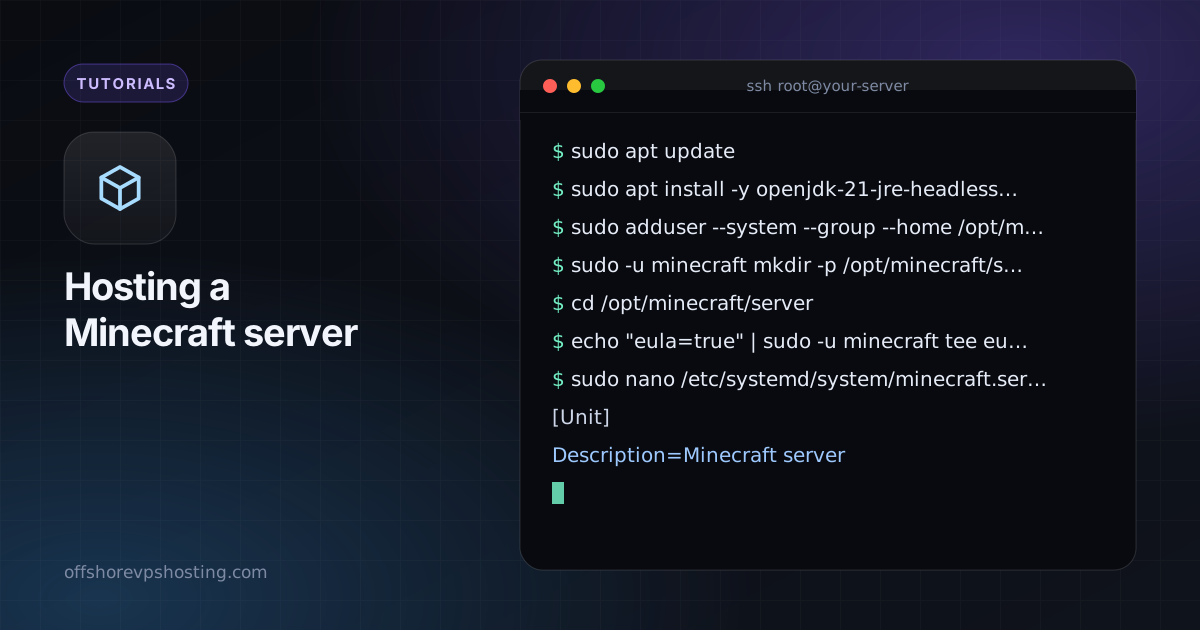
sudo apt update
sudo apt install -y openjdk-21-jre-headless screen
Current Minecraft versions need Java 21. Check the version you plan to run if it is older.
2. Create a user and download the server
sudo adduser --system --group --home /opt/minecraft minecraft
sudo -u minecraft mkdir -p /opt/minecraft/server
cd /opt/minecraft/server
Download the server jar for your chosen version from the official Minecraft site or from the PaperMC site, and save it as server.jar. Then accept the licence:
echo "eula=true" | sudo -u minecraft tee eula.txt
3. Run it as a service
sudo nano /etc/systemd/system/minecraft.service[Unit]
Description=Minecraft server
After=network.target
[Service]
User=minecraft
WorkingDirectory=/opt/minecraft/server
ExecStart=/usr/bin/java -Xms2G -Xmx3G -jar server.jar nogui
Restart=on-failure
[Install]
WantedBy=multi-user.targetsudo systemctl daemon-reload
sudo systemctl enable --now minecraft
sudo ufw allow 25565/tcpSet -Xmx to about half the RAM on the machine, so the operating system keeps room for caching. Connect from the game with your server's IP address.
4. Basic settings in server.properties
white-list=trueandenforce-whitelist=trueso only approved players can join.view-distance=8lowers CPU use with little visible loss.online-mode=truekeeps account verification on. Turning it off lets anyone impersonate any player.
Protect it from attacks
Game servers are a common DDoS target. Choose a host with network-level filtering, which our guide to DDoS protection explains, and never publish your IP address in places you do not need to. Back up the world folder daily; see our backup guide.